

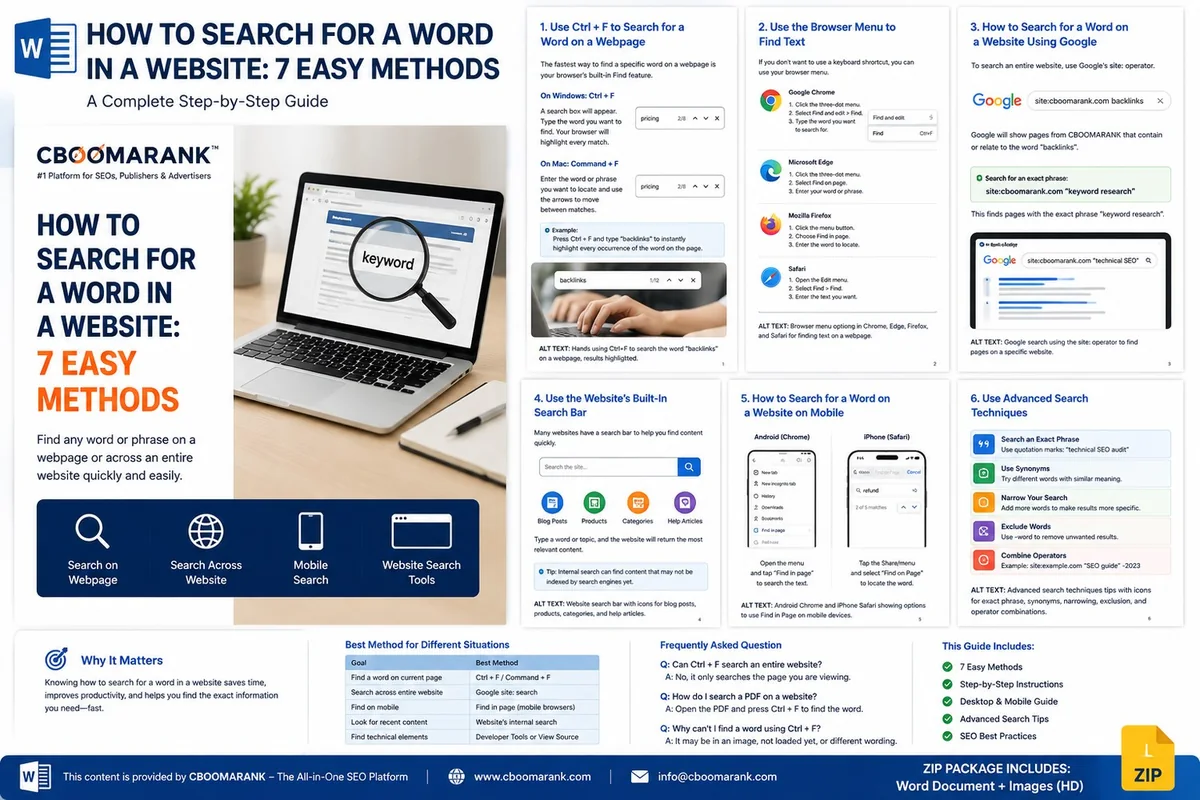
If you have ever opened a long webpage and wanted to find one specific word, phrase, product name, date, or topic, you do not need to read the entire page manually.
The quickest method is usually to press Ctrl + F on Windows or Command + F on Mac. Your browser opens a search box that lets you type a word or phrase and jump directly to every matching result on the current webpage.
But that only searches the page you currently have open. If you want to search an entire website, find a word on a mobile device, search a site without a search bar, or locate hard-to-find content, you have several other options. This guide explains how to search for a word in a website using desktop browsers, smartphones, Google, built-in website search tools, XML sitemaps, page source, PDFs, and developer tools.
1. Use Ctrl + F to Search for a Word on a Webpage
The fastest way to find a specific word on a webpage is your browser’s built-in Find feature.
On Windows
Press Ctrl + F. A small search box appears, usually near the top or bottom of the browser. Type the word or phrase you want to find, such as “pricing” or “backlinks.” Your browser highlights every match on the current page. Use the up and down arrows to move between matches.
On Mac
Press Command + F, then enter the word or phrase you want to locate. This works in major browsers including Chrome, Edge, Firefox, Safari, Brave, and Opera.
For example, if you are reading a 5,000-word SEO article and want the backlink section, press Ctrl + F and type “backlinks” instead of scrolling through the whole page.
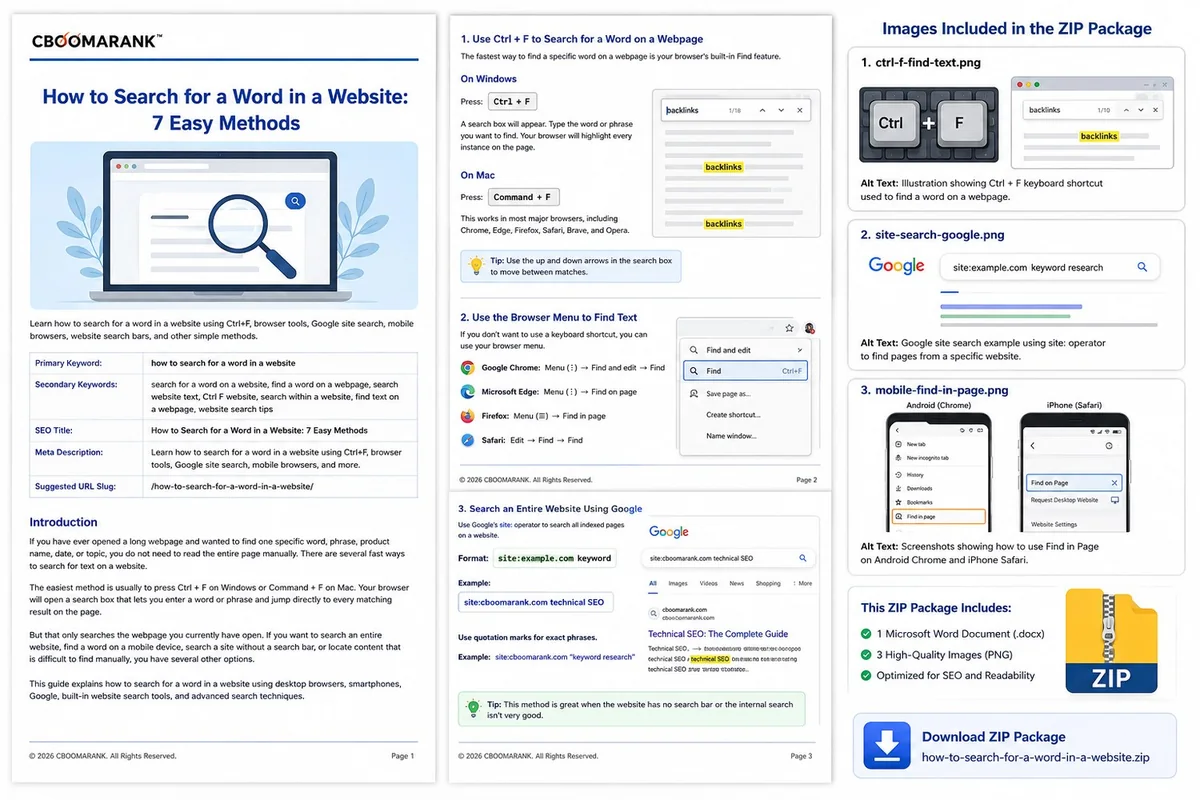
2. Use the Browser Menu to Find Text
If you prefer not to use a keyboard shortcut, major browsers provide the same search feature in their menus.
Google Chrome
Open the page, click the three-dot menu, choose Find and edit or Find, then type the word you want.
Microsoft Edge
Open the page, click the three-dot menu, select Find on page, and enter your search term.
Mozilla Firefox
Open the menu, choose Find in page, then enter the word or phrase.
Safari
Open the Edit menu and select Find → Find, then type the text you want to locate.
3. Search an Entire Website Using Google
Ctrl + F only searches the page you currently have open. To search multiple indexed pages from one domain, use Google’s site: operator.
Search format: site:example.com keyword
Example: site:cboomarank.com backlinks
Google will show indexed pages from that website that contain or relate to the word “backlinks.” For an exact phrase, put quotation marks around it, for example: site:cboomarank.com "keyword research".
Why the site: operator is useful
- The website has no internal search feature.
- The built-in site search is weak.
- You want to search many pages at once.
- You remember a phrase but not the article title.
- You want to find indexed pages about a particular topic.
4. Use the Website’s Built-In Search Bar
Many websites include an internal search icon or field in the header, sidebar, navigation menu, blog page, or footer. Enter a topic such as “technical SEO” and the website may return blog posts, products, categories, help pages, services, or documentation.
Internal search can sometimes find recently published content that has not yet been indexed by Google or Bing. However, search quality varies between websites.
5. How to Search for a Word on a Website on Android
- Open the webpage in Chrome.
- Tap the three-dot menu.
- Choose Find in page.
- Enter the word or phrase.
- Use the arrows to move through highlighted matches.
This is especially useful on long product pages, policies, guides, and documentation where manual scrolling is slow.
6. How to Search for a Word on a Website on iPhone or iPad
- Open the webpage in Safari.
- Tap the Share button or page menu, depending on your Safari version.
- Select Find on Page.
- Type the word you want to locate.
- Use the navigation arrows to move between matches.
On some Safari versions, you can also type a word into the address bar while viewing a page and choose an “On This Page” result.
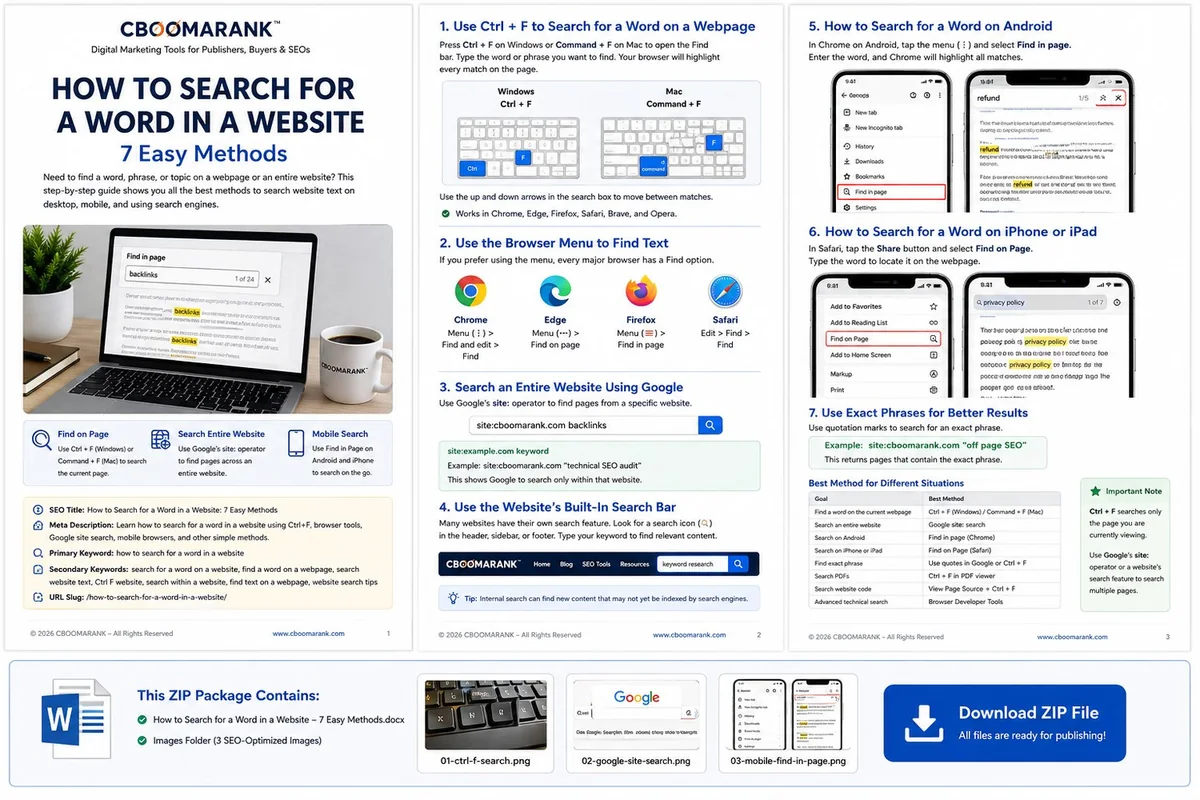
7. Search for an Exact Phrase Instead of a Single Word
A common problem with single-word searches is that they produce too many matches. If “search” appears dozens of times, try a specific phrase such as “search engine optimization.”
When using Google, wrap the phrase in quotation marks, such as site:example.com "technical SEO audit". Quotation marks help narrow the results to the exact phrase.
How to Search Multiple Pages of a Website
Ctrl + F cannot search an entire website. It only searches the webpage currently loaded in your browser. To search multiple pages, use a search engine site: query, the website’s own search tool, or dedicated internal-search software on large websites.
How to Search a Website for a Word That Google Cannot Find
Google may fail to return a page because it is new, not indexed, blocked from crawling, behind a login, heavily dependent on JavaScript, marked noindex, or recently changed. Try these alternatives:
- Use the website’s built-in search.
- Browse relevant categories or archives.
- Use Ctrl + F on likely pages.
- Try Bing or another search engine.
- Open the website’s XML sitemap.
- Check navigation menus and archive pages.
Search a Website Using Its XML Sitemap
Common sitemap locations include example.com/sitemap.xml, example.com/sitemap_index.xml, and example.com/wp-sitemap.xml. Open the sitemap and press Ctrl + F to search for URL words related to your topic. Remember that sitemaps usually contain URLs, not full article text.
How to Search a Website’s Source Code for a Word
- Right-click the webpage.
- Select View Page Source.
- Press Ctrl + F.
- Search for a word, phrase, meta tag, JavaScript reference, tracking code, canonical tag, or other HTML element.
Some JavaScript-generated content may not appear in the original source, in which case browser developer tools are more useful.
Use Developer Tools to Search Page Elements
In Chrome or Edge, press F12 or Ctrl + Shift + I, open the Elements panel, and press Ctrl + F. SEO professionals often search for terms such as canonical, schema, robots, nofollow, hreflang, and meta during technical audits.
How to Search a PDF on a Website for a Word
If a website opens a PDF in your browser, press Ctrl + F on Windows or Command + F on Mac and type the word you want. This works for reports, manuals, contracts, research papers, white papers, and documentation. Scanned-image PDFs may require OCR before text search works.
Why Ctrl + F Sometimes Does Not Find a Word
The text has not loaded yet
Some websites lazy-load content only after you scroll. Scroll farther and try again.
The content is inside an image
Ctrl + F searches text, not words embedded in screenshots or photographs.
The content is inside an embedded document
An iframe, embedded PDF, or third-party app may need its own search function.
The wording is different
Try synonyms, singular/plural variations, alternate spellings, or a shorter phrase.
Best Method for Different Situations
| Goal | Best method |
|---|---|
| Find a word on the current webpage | Ctrl + F / Command + F |
| Find a word on Android | Find in page |
| Find a word on iPhone or iPad | Safari Find on Page |
| Search an entire website | Google site: search |
| Find an exact phrase | Quotation marks |
| Search recently published content | Website internal search |
| Search a PDF | Ctrl + F |
| Search HTML source | View Source + Ctrl + F |
| Search technical page elements | Browser Developer Tools |
| Find website URLs | XML sitemap |
SEO Tip: Why Website Searchability Matters
If visitors regularly struggle to find information on your website, the problem may be the site architecture rather than the user. A well-structured website should make important content easy to discover.
- Clear navigation.
- Descriptive categories.
- Useful internal search.
- Logical internal links.
- Search-friendly URLs.
- Breadcrumb navigation.
- Accurate headings.
- Relevant anchor text.
Good information architecture helps users and search engines understand your website. Important pages should be accessible through logical navigation and contextual links instead of requiring complicated searches.
Related CBOOMARANK resources: Bing Webmaster Tools Guide and the CBOOMARANK Blog.
Frequently Asked Questions
How do I search for a specific word on a website?
Press Ctrl + F on Windows or Command + F on Mac. Type the word, and the browser highlights matching text on the current page.
How do I search an entire website for a word?
Use the site: operator in a search engine, for example site:example.com keyword.
Can Ctrl + F search an entire website?
No. Ctrl + F searches only the webpage currently open in your browser.
How do I search for a word on a website on my phone?
In Chrome on Android, use Find in page. In Safari on iPhone or iPad, use Find on Page.
How do I search for an exact phrase on a website?
Use the complete phrase with Ctrl + F on a single page, or use quotation marks in a site: search query.
Why can’t I find a word using Ctrl + F?
The word may be inside an image, dynamically loaded content, an iframe, a scanned PDF, or wording that differs from what you remember.
Can Google search inside one website only?
Yes. Use site:domain.com keyword to restrict results to indexed pages from that domain.
Final Thoughts
Learning how to search for a word in a website can save a surprising amount of time. For a single webpage, use Ctrl + F on Windows or Command + F on Mac. On mobile, use your browser’s Find in Page feature. For an entire website, use the site: operator or the website’s internal search.
For advanced tasks, XML sitemaps, browser developer tools, page-source search, and PDF search can help you locate information that ordinary browsing may miss. Whether you are researching a topic, looking for a product, reviewing a long article, troubleshooting a website, or performing an SEO audit, choosing the right search method makes navigating the web faster and more efficient.
